


Ensuring your router's basic WiFi settings are modified is crucial for establishing a distinct and secure connection. A safeguarded WiFi network helps prevent unauthorized access to personal information.
Before you begin:
- The changes you can make include assigning a WiFi name and securing your connection through a WiFi password.
- The WiFi password is NOT the router password. Here are instructions to update the router password using your web interface.
- Changing your WiFi settings will disconnect all devices from your router. You have to reconnect them using the new settings. Here are instructions to connect your wireless computers to your WiFi.
- Images of the web-based setup page may differ depending on your router's model number.
The following steps will assist you in modifying the WiFi settings of your router.
1. Access your router's web interface.
2. Click Wi-Fi Settings on the left navigation pane under Router Settings.

3. Under the Wireless tab, click on Show more to display the separate settings for the 2.4 GHz and 5 GHz bands.
4. Enter your desired Wi-Fi name and Wi-Fi password in the fields provided.
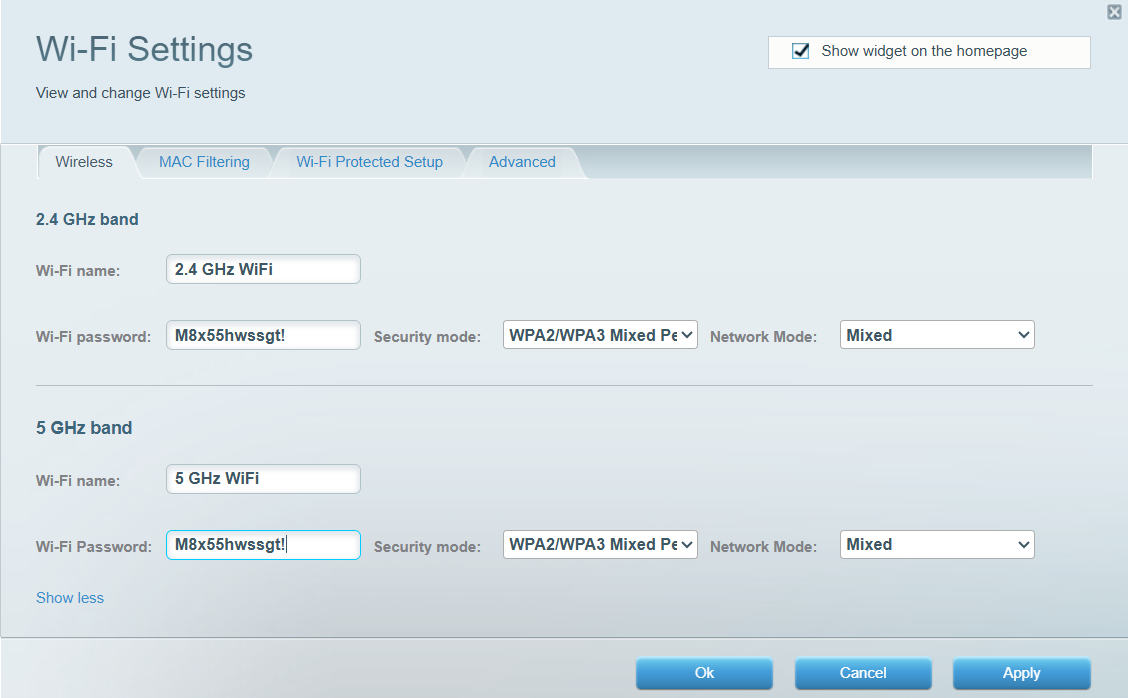
5. Click on Apply and hit Ok.
QUICK TIPS:
- Explore the difference between the 5 GHz and 2.4 GHz bands.
- On some Linksys Smart WiFi Routers, the WiFi name is also known as the Network name (SSID). A WiFi password is also known as a Password. Setting your Network mode, Security mode, Channel width, and Channel can also be done.
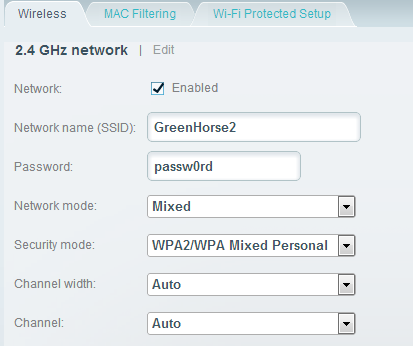
- Changing the WiFi channel lessens the interference to your WiFi connection. Also, the available wireless channels may vary depending on your region.
Find out more:
How to automatically update the firmware of the Linksys Smart Wi-Fi Routers
How to check and update the router password using your web interface
How to turn OFF my router’s or gateway’s WiFi

