You are using an unsupported browser. Please update your browser to the latest version on or before July 31, 2020.
close
You are viewing the article in preview mode. It is not live at the moment.
> 登入名稱和密碼 > Changing your Linksys Intelligent Mesh admin password
Changing your Linksys Intelligent Mesh admin password
print icon

This article will help you create or change your router’s admin password through the router's web user interface.

NOTES:  

  • The default password of a Linksys Intelligent Mesh router that has older firmware is admin
  • With the latest firmware, routers that support IMDA no longer use admin as the default password.
  • For Airband ISP subscribers, the default administrator password of an unconfigured Linksys node is admin. After you set up the node or it has an internet connection, the default admin password changes to the unique pre-assigned WiFi password located on the product label.  
  • For Gigaclear ISP subscribers, the default administrator password of an unconfigured Linksys node is admin. Once the node has an internet connection, the password changes to the default WiFi Password (this is case-sensitive) plus the Recovery Key number, located on the product label. 


Images may vary depending on your router. 

1.
Open a web browser to access your router's web interface.
 
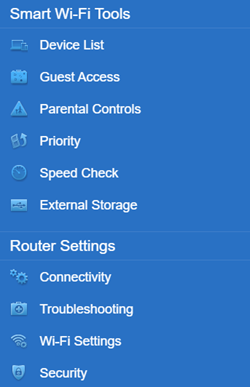
2. Click Connectivity under Router Settings.


Linksys Web interface Menu
 
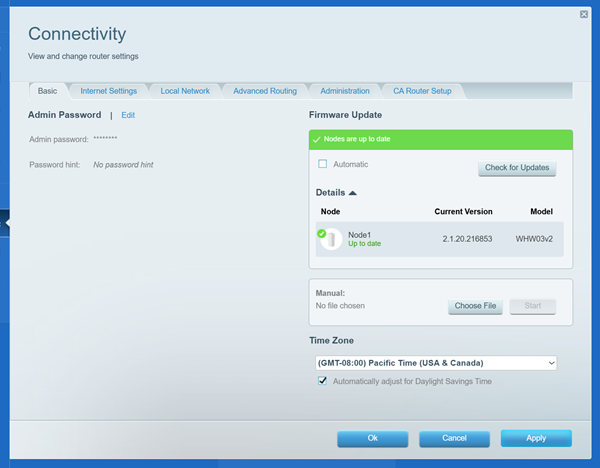
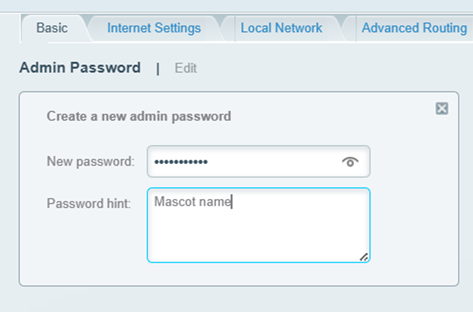
3. On the Basic tab, click Edit next to Router Password and enter your preferred password.

An image of Admin password edit and Firmware update
 
4. Click the Apply button to save the changes.
 
You should now have changed your admin password.


Find out more:


Customizing the different WiFi bands of your Linksys router
這篇支援文章有用嗎?
0 / 0 覺得這很有幫助

聯絡我們
致電我們  存取我們的全球支援號碼清單
Reddit  加入並訂閱我們的官方 Reddit 社群
與我們聊天  我們樂意為您解答所有問題
Linksys
Now
Support
滾動到頂部圖標