


Configuring the Guest Access feature through the Linksys app
The Guest Access feature allows guests to use your internet connection without granting access to your files and other devices connected to your main network. This means that though your friends can still visit different websites, they will not be able to access printers or any shared files on your home computers.
This article will guide you on how to configure the Guest Access feature using the Linksys app.
Steps and images vary by the operating system of your mobile device, the version of your Linksys app, or the model of your router.
1. Connect your mobile device to your router's WiFi, then open the Linksys app.
2. Log in using Router Password on iOS or Use Router Password on Android™.
If you forgot your password, click Reset password.
| iOS | Android |
 |
 |
3. On the dashboard, tap the menu icon in the upper-left corner.
4. Tap on Guest Network for iOS or Guest Access for Android.
| iOS | Android |
 |
 |
5. Toggle the switch to disable or enable the Guest Access feature. Set a guest's WiFi name and password.
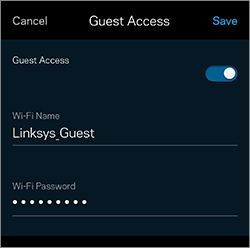
6. Tap Save to apply the changes.
Guest Access should now be configured and ready for connection. To learn how to connect other WiFi devices to the guest WiFi, click on the link below:
Connecting a WiFi computer to the Guest WiFi
Connecting a WiFi computer to the Guest WiFi

