


Enabling Guest Access of the Linksys Dual-Band WiFi Router

The Guest Access feature allows you to create a separate WiFi for your guests without allowing them to access your main network and the computers connected to it.
The Linksys Dual-Band WiFi Router’s Guest Network is only for 2.4 GHz band.
Follow the steps below to enable Guest Access of the Linksys Dual-Band WiFi Router:
1. Log in to the Linksys Dual-Band WiFi Router's web interface.
2. Click the Configuration tab.
3. Click Wi-Fi.
4. Click Guest Access.
2. Click the Configuration tab.
3. Click Wi-Fi.
4. Click Guest Access.
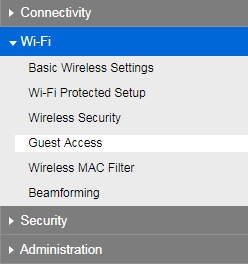
5. Check the box beside Allow Guest Access.
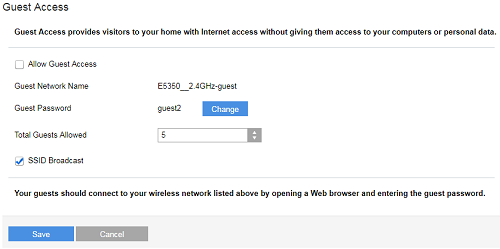
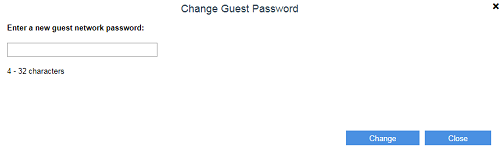
6. Click the Change button.
7. On the Change Guest Password pop-up form, create a new guest network password and click Change.
8. Select your desired Total Guest Allowed from the drop-down options.
9. Click Save.
By default, the Guest Network Name is the same name as your 2.4 GHz Wi-Fi name followed by –guest, which can be changed in the Basic Wireless Settings page.
Your guests can now connect to your Guest Network to access the internet.
3536

