


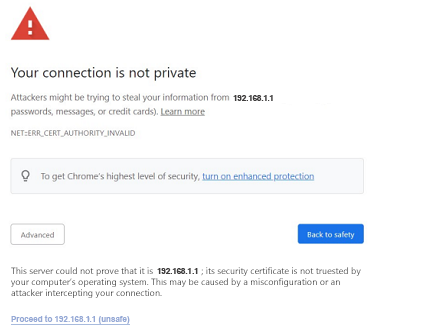
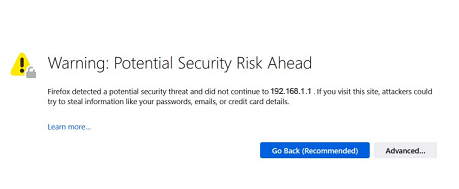
Certain routers with the latest firmware require an HTTPS connection (e.g., https://192.168.1.1). When you log in to a Linksys router, you may encounter a warning message due to the browser searching for signed security certificates associated with the websites you are trying to visit. Your router is not a website and does not have that type of certificate.
There is no need to be concerned because your connection is secure and encrypted. This error occurs only when accessing a router using an HTTPS connection.
This article will help you resolve this browser login error. Keep in mind that the default IP address varies by model when the router is connected to an upstream network. For the latest models, you can also use www.myrouter.info or myrouter.info. To manage your router locally, connect your device to your Linksys WiFi network, then log in at https://192.168.1.1 or myrouter.local.
1. Click Advanced.
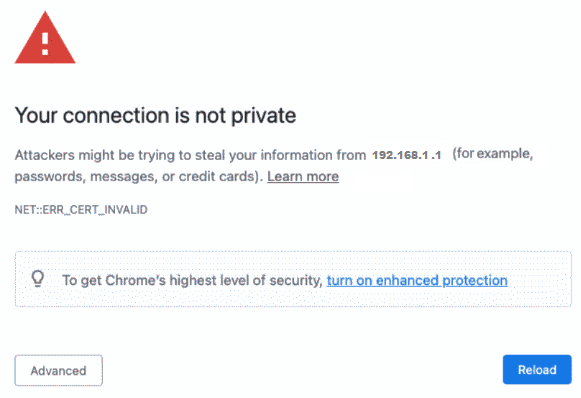
2. Click Proceed to 192.168.1.1 (unsafe).
1. Click on the Advanced... button.
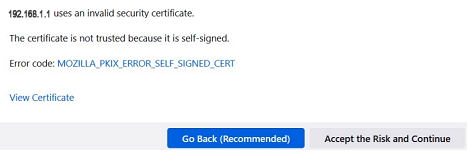
2. Click Accept the Risk and Continue.
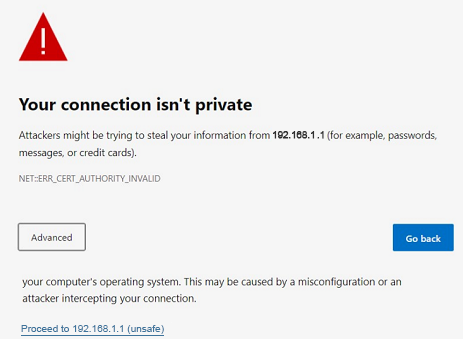
1. Click Advanced.
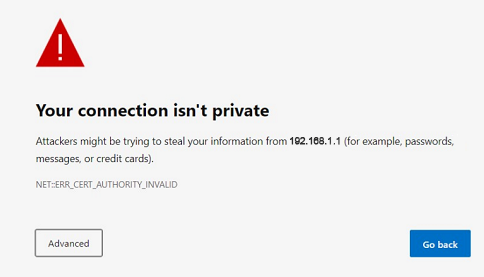
2. Click Proceed to 192.168.1.1 (unsafe).
1. Click on Show Details.
2. Click on visit this website.
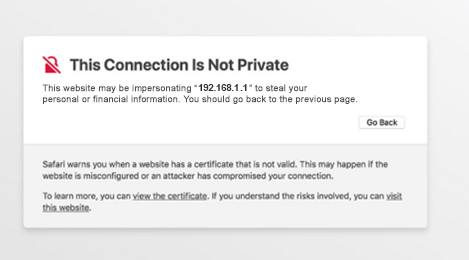
3. You will be prompted to confirm your visit to the website. Click Visit Website.

