You are using an unsupported browser. Please update your browser to the latest version on or before July 31, 2020.
close
You are viewing the article in preview mode. It is not live at the moment.
Home > Login and Password > Passwords and Access
Passwords and Access
print icon


You can log in to the Linksys app dashboard or the web interface to access the settings of your router or node. Both methods will allow you to enter either your Linksys cloud account credentials or router password. Follow the steps explained below to learn how. 

Using your Linksys cloud account

Some steps may vary slightly depending on the operating system of your device.


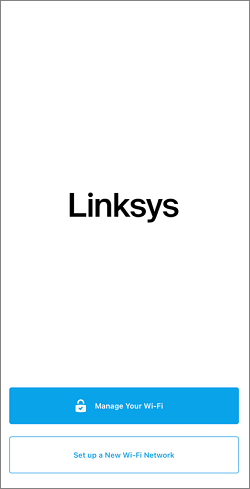
1. Tap Manage Your Wi-Fi (iOS) or Log in (Android™).
 
Manage Your Wi-Fi (iOS)
iOS
Log in (Android)
Android

2. Log in using the email address associated with your Linksys cloud account.

Tap Email, enter your Linksys cloud account credentials, and tap Log in. If you don’t have a Linksys cloud account, tap on Create an account.

 
iOS Log in
iOS
Android Log in
Android
 
If you have multiple networks, select a network to continue.
 
iOS online routers
iOS
Android online routers
Android

If your Linksys network is not associated with your Linksys cloud account, you will be prompted to add the router to your account. Tap on Add to Account, and then follow the on-screen instructions to associate it with your account.

Add to account mobile app page

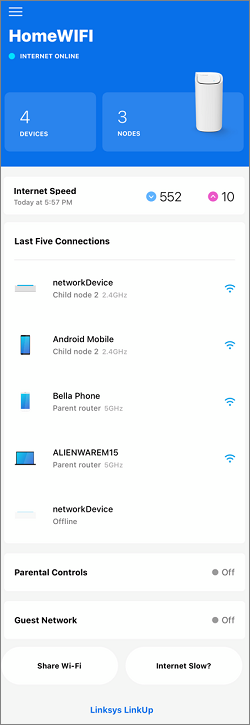
3. Once logged in, you will be redirected to the dashboard. To see your options, tap the menu icon on the top left-hand side of the dashboard. The features vary by model.    

 
iOS mobile app dashboard
iOS
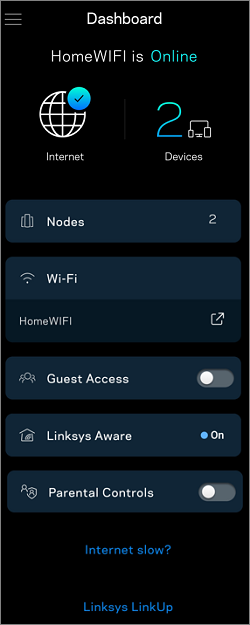
Android mobile app dashboard
Android


Using the router password

Some steps may vary slightly depending on the operating system of your device.
 
1. Tap Manage Your Wi-Fi (iOS) or Log in (Android).
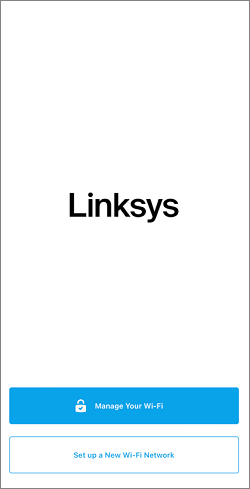
Manage Your Wi-Fi (iOS)
iOS
Log in (Android)
Android


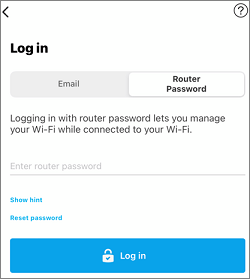
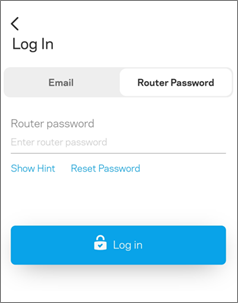
2. Tap on Router Password, enter the password, and then tap Log in.
 

iOS mobile app log in
iOS
Android mobile app log in
Android
 

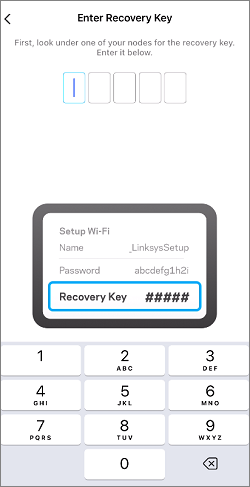
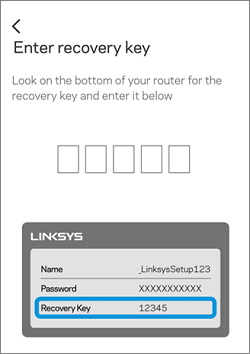
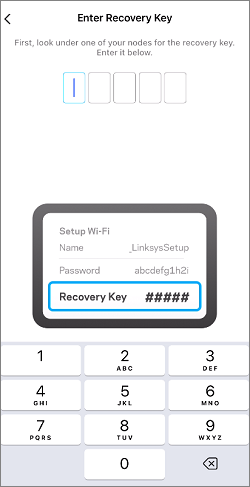
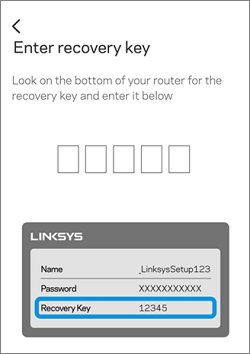
If you have forgotten your password, tap on Reset password to enter the router's recovery key.


iOS enter recovery key
iOS
Android enter recovery key
Android


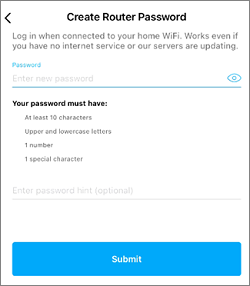
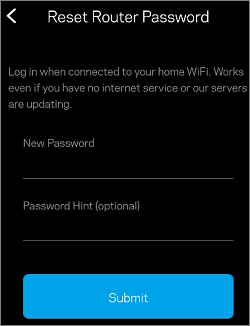
Create a new password, and then tap Submit. The password is case-sensitive.


mobile app reset router password

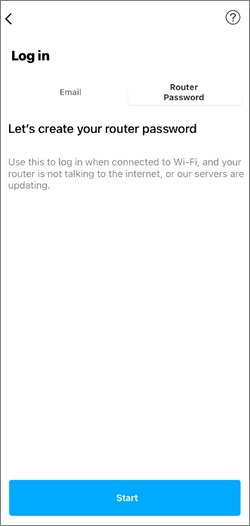
If you have never customized your router’s password after setting it up, you will be requested to do so. Tap Start when prompted then follow the on-screen instructions to complete the process.

mobile app create your router password

3. Once logged in, you will be redirected to the dashboard. To see your options, tap the menu icon in the top left-hand side of the dashboard. The features vary by model.


iOS mobile app dashboard
iOS
Android mobile app dashboard
Android


Using the web interface

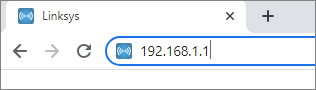
1. Enter “myrouter.local” or "192.168.1.1" (if you are connected to your Linksys router) in the Address bar of your browser and hit [ENTER].

web browser with 192.168.1.1


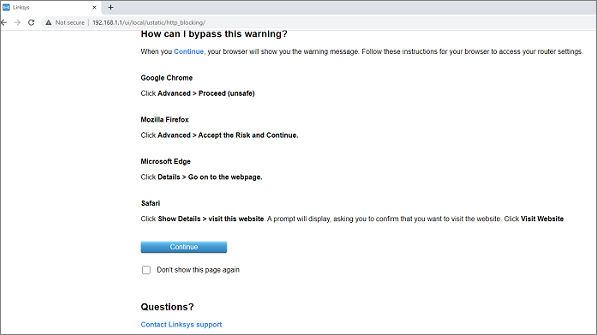
If you reach a page that shows this message, click Continue or follow the steps in this article to bypass the browser error message.

web browser error

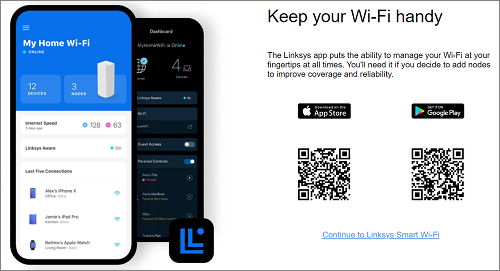
2. Click on the mobile image.

mobile image in web interface

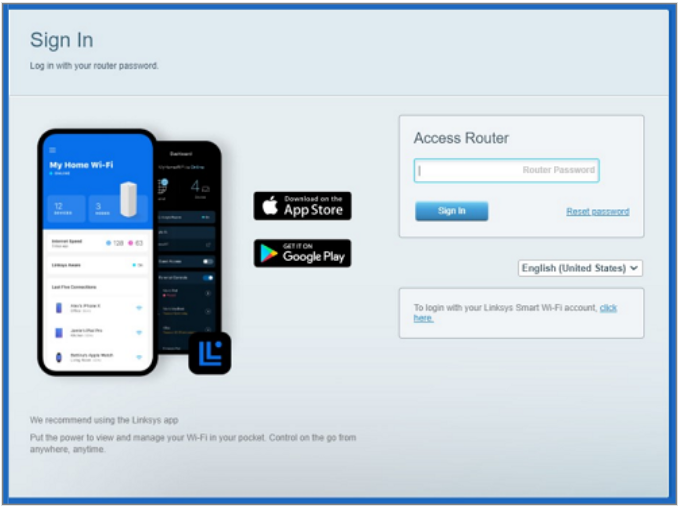
3. E
nter your Router Password and then click Sign In.

 
sign in page of Linksys web interface

If you have forgotten the password or if you haven’t customized the password after setting up the router, you will be prompted to reset the password first. To do this, click on Reset passwordenter the recovery key, and then click Submit. Then, enter a new router password and hint (optional) and click Reset. The password is case-sensitive.

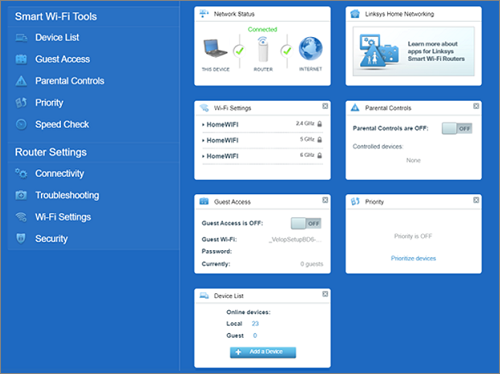
4. Once logged in, you’ll land on the dashboard. Your menu options are listed on the left side.

Linksys web interface dashboard


You’ll get locked out of your account if you enter the wrong password multiple times. If you forgot your email password, changing it is easy if you follow the steps below.

Using the Linksys app

Some steps may vary slightly depending on the operating system of your device.

1. Tap Manage Your Wi-Fi (iOS) or Log in (Android).

Manage Your Wi-Fi (iOS)
<iOS
Log in (Android)
Android


2. Tap Email, and then tap the Forgot password? link. 


forgot password? link

  
3. Follow the on-screen prompts to reset the password. 

Enter your email address and tap Send Email. An email will be sent to you with a reset link. Follow the instructions in the link to complete the process.

 
send email for forgot password
check your email page


Using the web interface

1. Enter “myrouter.local” or "192.168.1.1" (if you are connected to your router) in the Address bar of your browser and hit [ENTER].


2. Click the 
To login with your Linksys Smart Wi-Fi Account, click here link.


web interface sign in page


3. Click the Forgot your password? link under the log-in fields.


Linksys web interface forgot your password
 
4. Enter your email address and click on Send instructionsAn email will be sent with instructions on how to reset your password.
 
Linksys web interface send instructions


You can reset your router password to log in to the Linksys app or the web interface without an internet connection by following the steps below. 

Using the Linksys app

 
Some steps may vary slightly depending on the operating system of your device.
 
1. Tap Manage Your Wi-Fi (iOS) or Log in (Android).
Manage Your Wi-Fi (iOS)
iOS
Log in (Android)
Android


2. Tap on Router Password, and then tap Reset password.

Reset password

3. Follow the on-screen prompts to reset the password. You will be required to enter the recovery key.  


iOS recovery key
iOS
Android recovery key
Android
 
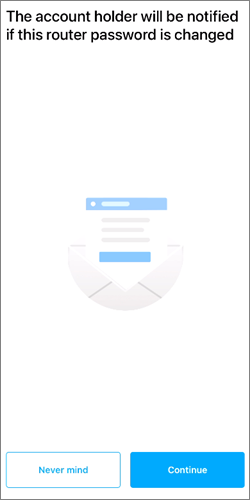
When you see a prompt saying that you will be notified if the password is changed, tap Continue.

Continue

Create a new password, and then tap Submit. The password is case-sensitive.
 
iOS create router password
iOS
Android create router password
Android
  
If you have never customized your router’s password after setting it up, you will be prompted to do so, and you will see a Start button. Tap on Start, then follow the on-screen prompts to complete the process. 

Create router password start


Using the web interface

 
1. Enter “myrouter.local” or "192.168.1.1" (if you are connected to your Linksys router) in the Address bar of your browser and hit [ENTER].

web browser with 192.168.1.1


If you reach a page that shows this message, click Continue or follow the steps in this article to bypass the browser error message.

web browser error page

2. Click on the mobile image.

Web interface mobile app image

3. Click on the click here link for local access login, then click on Reset password.
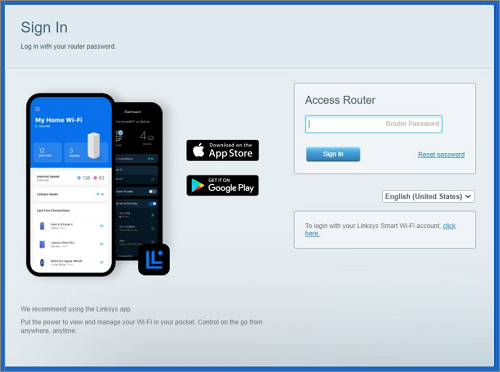
Web interface sign in page

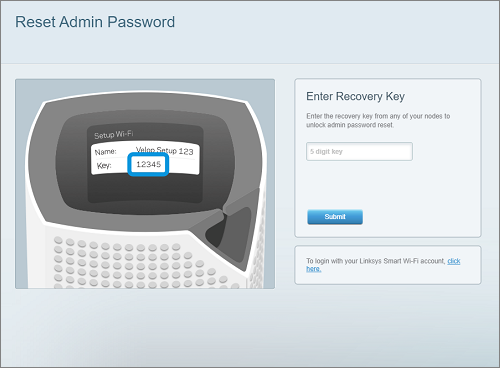
4. Enter the recovery key printed on the router's product label, then click Submit

Enter recovery key

5. Enter a new router password and hint (optional), then click Reset. The password is case-sensitive.
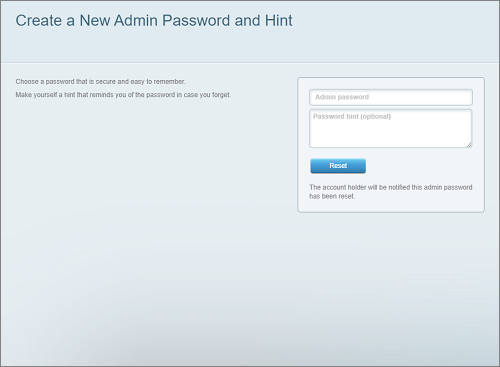
Create new password and hint

Your router's admin password should now be successfully reset.


If after trying the reset options do not work, and if you are confident you’re entering the correct login information but are unable to log in, your internet service provider (ISP) might be blocking your access. Try logging in to the web interface using a different browser. If the issue persists, call your ISP and confirm if the site is not being blocked. If your service provider is unable to help, contact Linksys Support.

Was this support article helpful?
2 out of 19 found this helpful

Contact Us:
Call Us Access our list of global support numbers
Reddit Join and subscribe to our Official Reddit Community
Chat Us We are here to help you with all the questions you have

Linksys
Now
Support
scroll to top icon