


Overview of the External Storage feature of the Linksys Intelligent Mesh system

The External Storage feature of the Linksys Intelligent Mesh™ system allows you to connect an external storage device to the USB port on the router and share the entire drive. This article will provide an overview of this feature.
Before you begin:
Before you begin:
- This feature supports external USB drives only.
- Some Linksys routers or nodes support the USB feature on the parent node only and not on the child node.
Supported file formats
Supported formats vary by model.
LinksysSmartWiFi.com page view
1. Log in to your router via a web browser.
2. Click on External Storage.
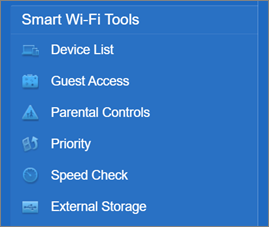
3. Configure your settings and click Apply to save.
|
Feature
|
Description
|
|
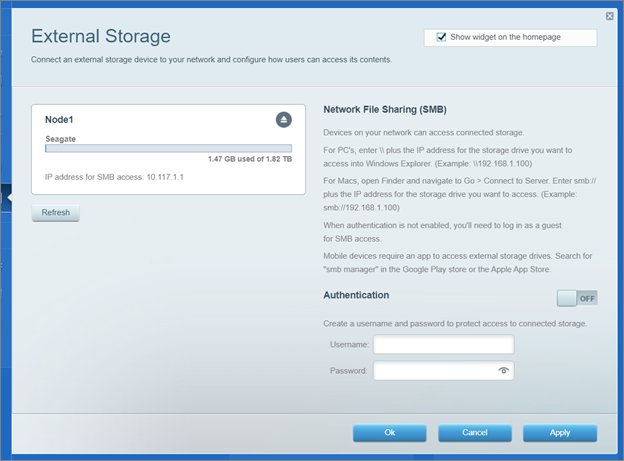
In this section, you will see the drive connected to your Linksys router. You will see the IP address of the router, this is what you can use to access the drive from your Linksys network.
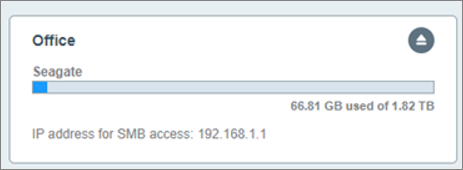
 Some Linksys routers support the USB feature on child nodes as well. If you have a second USB drive connected to a child node, you will see the following image. Notice each drive has a different IP address to access.  Click Eject  to safely eject your hard drive. If you have more than one USB drive connected to other routers in your network, you will have one Eject button for each drive. to safely eject your hard drive. If you have more than one USB drive connected to other routers in your network, you will have one Eject button for each drive. |
|
| Network File Sharing (SMB) |
The steps on how to access your drive are provided in this section.
|
| Authentication | By default, authentication is turned OFF. To add a password when attempting to access the hard drive, turn this feature ON and create a username and password. Authentication requirements:
 |
How to access your drive
Most Linksys Intelligent Mesh systems support SMB v2.0.
To access the storage drive, you will need the IP address of the hard drive as mentioned in the drive information section of the chart.
In this article, we are using 192.168.1.1 as an example. Steps may vary depending on the version of your computer's operating system.
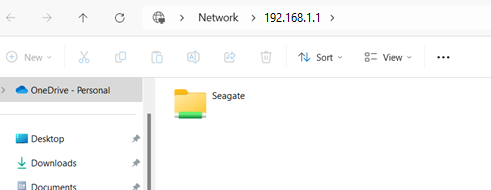
For Windows® computers:
Enter “\\” followed by the drive's IP address in the Windows Explorer field (example: \\192.168.1.1), then press [ENTER]. If you enabled authentication, enter the drive’s username and password.
For Mac® computers:
Open Go > Connect to Server. In the Server Address field, enter “smb://” followed by the drive's IP address, then click Connect. If you enabled authentication, enter the drive's username and password.

