


Firmware updates are bug fixes and functionality enhancements for the router. Keeping the firmware of your Linksys device updated is important because it fixes issues you may encounter while using it. The updated firmware downloaded from the Linksys Support site may also contain device feature enhancements that are not available in the previous versions.
Before you begin:
- Connect your computer to your Linksys network via WiFi or ethernet.
- If the firmware you downloaded is a .zip file, you must unzip it before proceeding with the upgrade.
- The name of the file may vary depending on the firmware file of your device.
- During the firmware update process, do not turn OFF your router or close the browser window.
Manually upgrading the router’s firmware
1. Download the latest firmware for your router and save it on your computer.
2. Open a web browser, type “myrouter.local”, “linksysxxxxx.local”, or "https://192.168.1.1" in the Address bar, then press [ENTER].


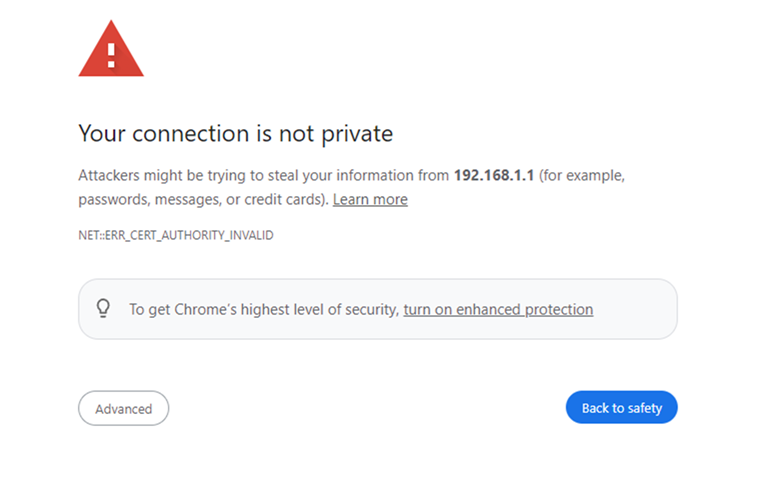
3. If you receive the following message, follow these instructions to proceed.
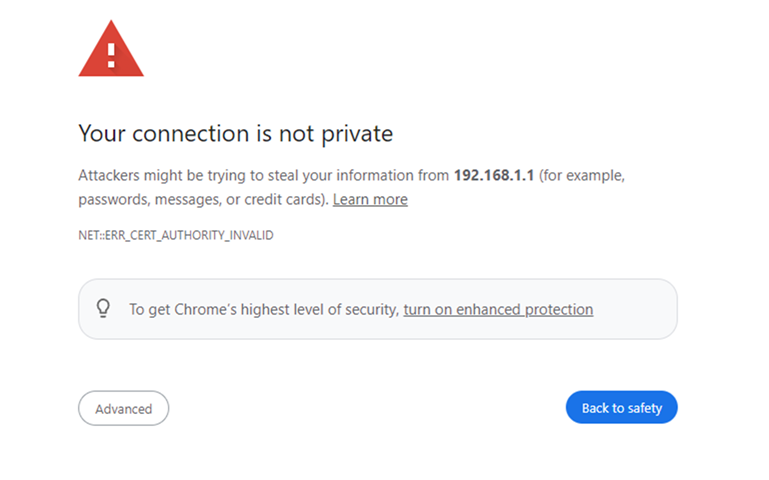
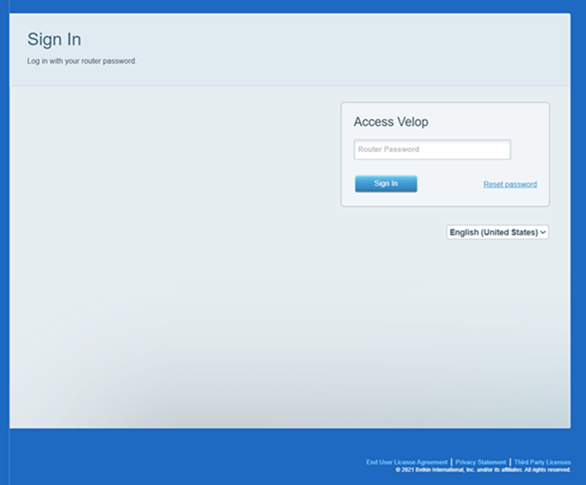
4. Enter your router password and click Sign In. The default password of a Linksys router is “admin”.
NOTE: If you have forgotten the router password, you will need to reset the router, set it up again, and create a new password.
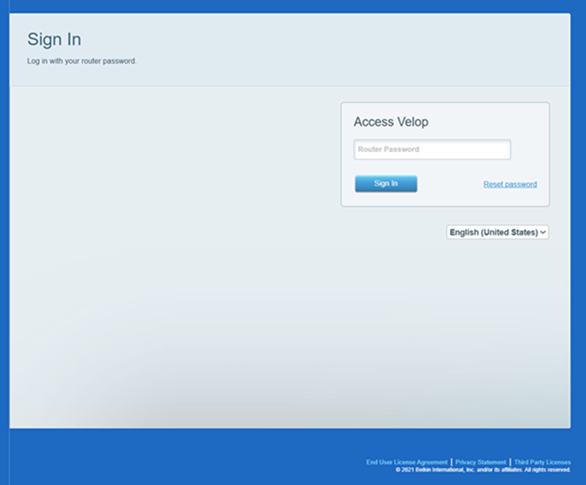
You will be redirected to the dashboard.
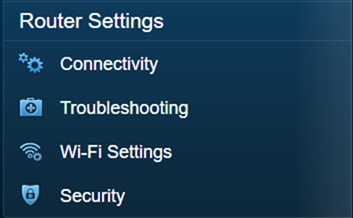
5. On the dashboard, click Connectivity.
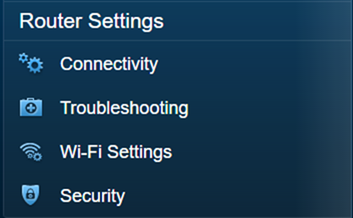
6. In the Firmware Update section, under the Basic tab, click the Choose File button.
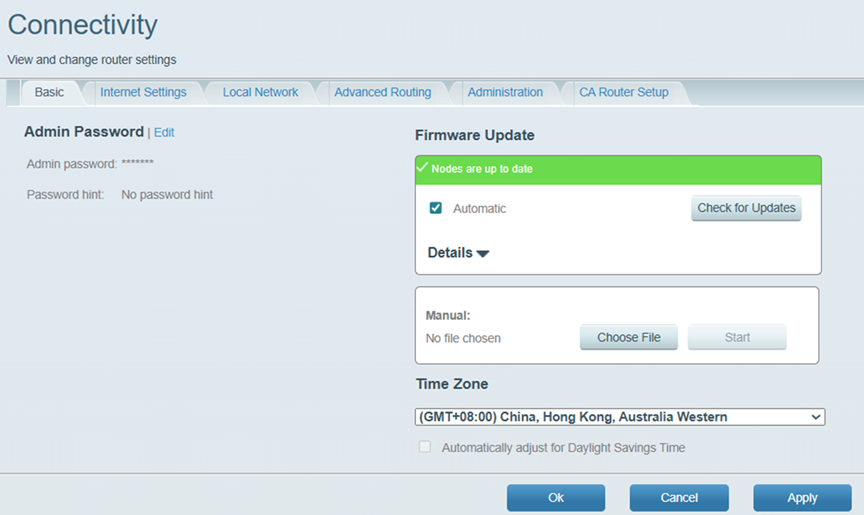
7. Select the file you have downloaded and click Open.
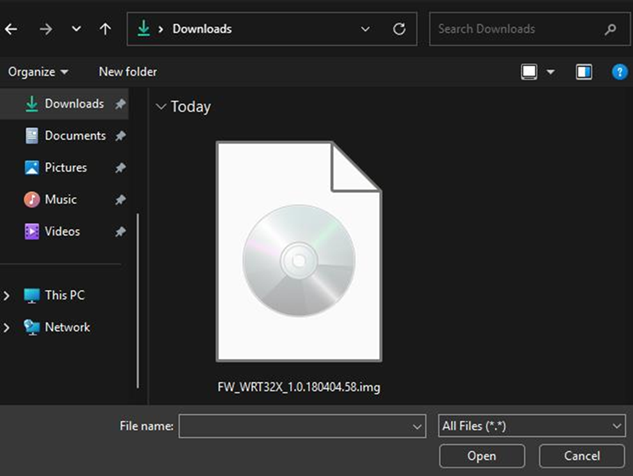
8. Click the Start button.
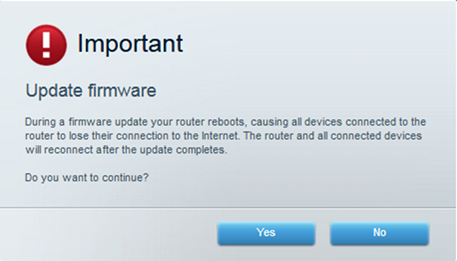
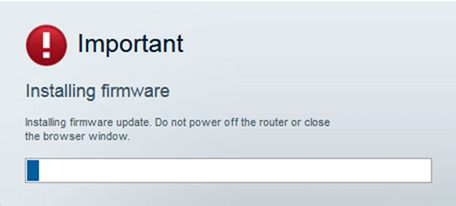
9. On the Update firmware pop-up box, click Yes. Your router will start updating the firmware.
During this process, do NOT turn OFF your router or close the browser window.
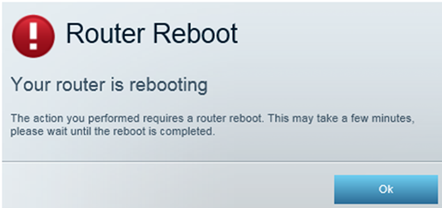
10. A Router Reboot screen will pop up. Click Ok to continue.
The router reboot process usually takes a few minutes.
11. On the Firmware update complete screen, click Ok.
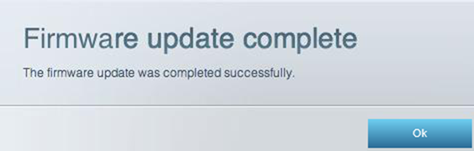
Your router's firmware should now be updated.
Linksys routers also have an Auto Firmware Update feature that automatically updates the router whenever new firmware is available.
But if you want to prevent your router from receiving automatic firmware updates, you will need to turn OFF the Automatic Firmware Update feature.
Follow the steps below:
1. Open a web browser, type “myrouter.local”, “linksysxxxxx.local”, or "https://192.168.1.1" in the Address bar, then press [ENTER].


2. If you receive the following message, follow these instructions to proceed.
3. Enter your router password and click Sign In. The default password of a Linksys router is “admin”.
NOTE: If you have forgotten the router password, you will need to reset the router, set it up again, and create a new password.
You will be redirected to the dashboard.
4. On the dashboard, click Connectivity.
5. On the Basic tab, uncheck the box beside Automatic under Firmware Update, then click Ok.
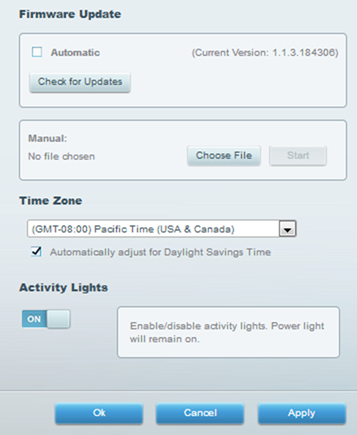
To turn ON automatic firmware updates again, check the box beside Automatic and click Ok.
Find out more:
How to unzip the downloadable zip file from the Linksys support site

