


How to access the web interface of a Linksys Managed Gigabit Switch
The Linksys Managed Gigabit Switches offer a quick and easy solution to extend your office network. The switches feature gigabit speed ports, and a web interface for easy configuration and management for networking devices to be located anywhere without the need for alternating current (AC) outlets.
Before you begin:
- The Linksys Managed Gigabit Switch is a DHCP client by default. When no DHCP server is detected, the switch will default to an IP address of 192.168.1.251 (where the default password is admin).
- If your switch is connected to a network with a DHCP server, you will need to determine the IP address of the switch from the router’s list of DHCP clients.
- If the images you see or the steps you follow look different from the actual page, here are alternative instructions/information.
To access the web interface of the switch, follow the steps on each of the scenarios below:
When no DHCP server is detected
When the switch is connected to a DHCP server
When no DHCP server is detected
1. Connect one end of an ethernet cable to one of the ports of the switch. Connect the other end to your computer.
2. Power ON your switch.
3. On your computer, assign a temporary IP address of 192.168.1.x.
4. Launch a browser, enter “192.168.1.251” in the Address bar, and hit [ENTER].
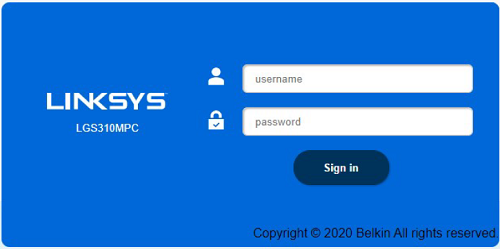
5. Enter admin as the default username and password. If you’ve changed your admin password, use that instead. Click Sign in once done.
2. Power ON your switch.
3. On your computer, assign a temporary IP address of 192.168.1.x.
4. Launch a browser, enter “192.168.1.251” in the Address bar, and hit [ENTER].
5. Enter admin as the default username and password. If you’ve changed your admin password, use that instead. Click Sign in once done.
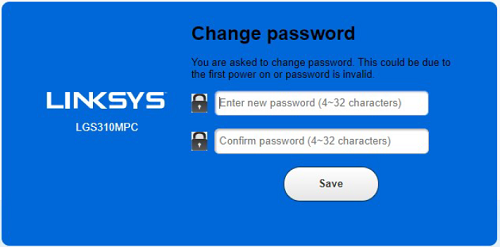
If your switch is on its default settings, you will be prompted to change your password. Simply enter a password, confirm it, and click Save to apply settings.
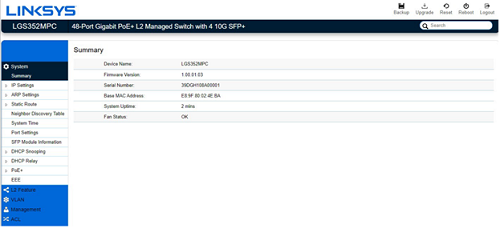
You have now successfully accessed your Linksys Managed Gigabit Switch’s web interface.
Once you have determined the IP address of the switch, follow the steps below:
1. Connect one end of an ethernet cable to one of the ports of the switch. Connect the other end to your computer.
2. Power ON your switch.
3. Launch a browser, enter the IP address of the switch in the Address bar, and hit [ENTER].
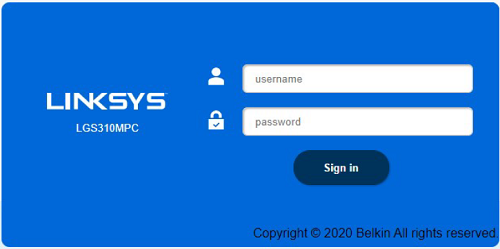
4. Enter admin as the default username and password. If you’ve changed your admin password, use that instead. Click Sign in once done.
2. Power ON your switch.
3. Launch a browser, enter the IP address of the switch in the Address bar, and hit [ENTER].
4. Enter admin as the default username and password. If you’ve changed your admin password, use that instead. Click Sign in once done.
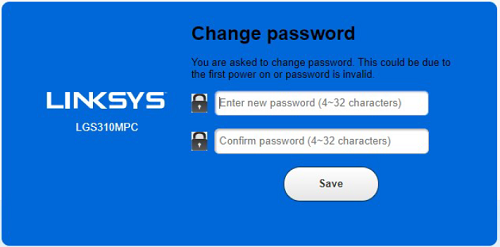
If your switch is on its default settings, you will be prompted to change your password. Simply enter a password, confirm it, and click Save to apply settings.
You have now successfully accessed your Linksys Managed Gigabit Switch’s web interface.
By default, the web interface session timeout is set to 5 minutes. Here are instructions to change this.

