


When a router is in Bridge Mode, its routing functions and DHCP server are disabled. It surrenders its standard default IP address (192.168.1.1) and stops recognizing local domain redirects like myrouter.local. Instead, it acts as a simple pass-through client, receiving a new, dynamic IP address directly from your primary modem or gateway.
However, accessing the web interface of a Linksys Velop Mesh network while in Bridge mode is straightforward. First, you must identify the parent node's IP address. Once found, you can use it to log into the web interface.
Follow these steps to begin:
1. Find the parent node’s LAN IP address
2. Access the web interface
There are several ways to determine your parent node’s IP address. Use whichever method is most convenient for you:
1. Connect your mobile device to your WiFi and launch the Linksys app.
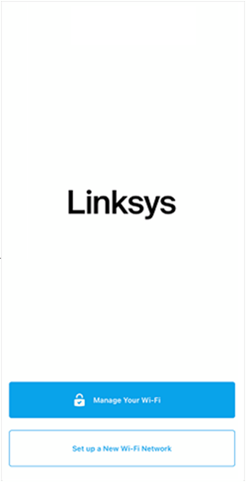
2. For iOS, tap Manage Your Wi-Fi. For Android, tap Log in.
| iOS | Android™ |
 |
 |
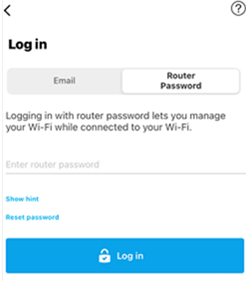
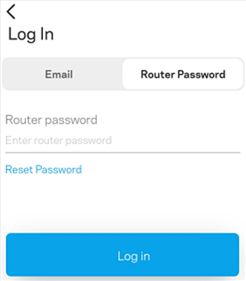
3. Tap on the Router Password tab, enter your router admin password, and tap Log in.
If you have forgotten your password, tap Reset password/Reset Password and follow the instructions to recover it.
| iOS | Android |
 |
 |
You will then land on the dashboard.
4. Tap the menu  icon in the upper-left corner.
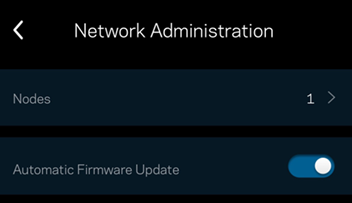
5. Select Network Administration.
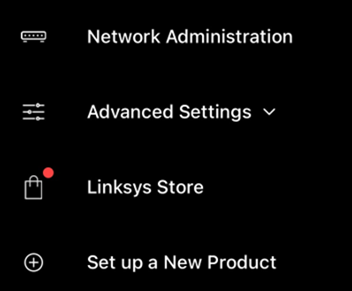
6. Tap on Nodes.
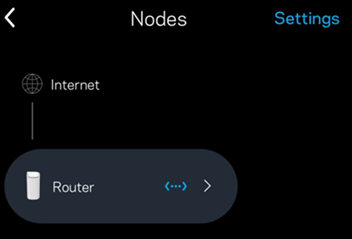
7. Select the parent node (the first node listed).
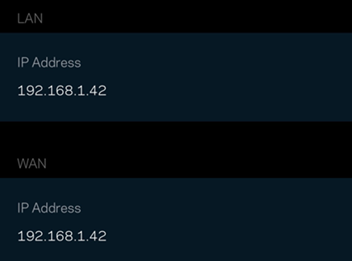
8. Write down the IP address found under the LAN section (e.g.,192.168.1.42).
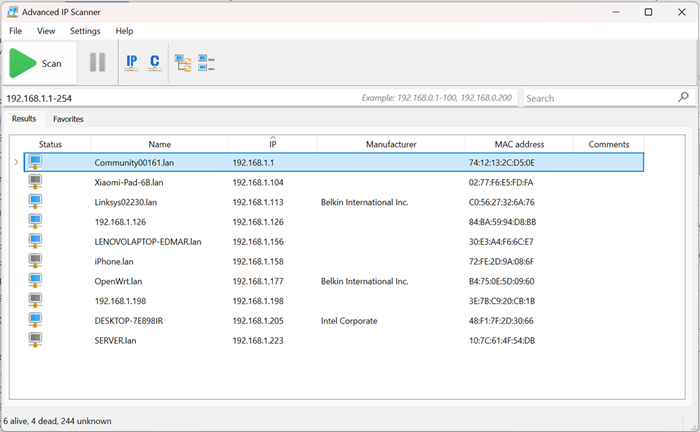
If you are not using the Linksys app, this is an excellent alternative for identifying network devices. Note that this method requires familiarity with accessing your gateway or modem’s administration interface.
ISP-provided devices typically use unique login credentials. If you do not have these credentials, contact your Internet Service Provider (ISP) for assistance.
Once logged in, look for the DHCP Client List, DHCP Table, or Connected Devices menu. Locate the parent node in that list to identify its assigned IP address.
Keep in mind that interface menus vary depending on the manufacturer and ISP. If you have difficulty finding this information, consult your device's user guide or contact your ISP.
Unlike a router’s DHCP client list, which only shows devices actively requesting automatic IP assignments, an IP scanner actively detects all live equipment on the network. This includes devices using either dynamic (DHCP) or static IP configurations, providing a complete view of your current network landscape.
You can access the router's web interface using either a computer or a mobile device connected to your network.
Review the sections below and select the specific steps that apply to your current device.
a. Using a mobile device
b. Using a computer
1. Connect your mobile device to the same mesh network.
2. Launch a browser, type https:// followed by the IP address into the address bar (e.g., https://192.168.1.42), and tap Go.

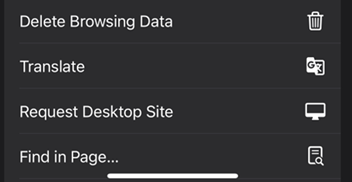
3. Tap on the three dots on the upper left.

4. Select Request Desktop Site.
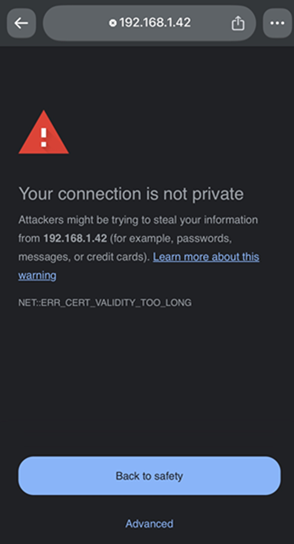
5. Tap on Advanced.
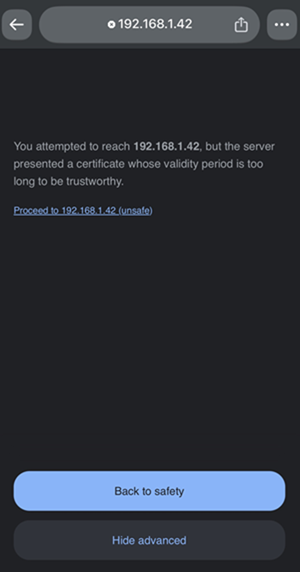
6. Tap on Proceed to 192.168.1.42 (unsafe).
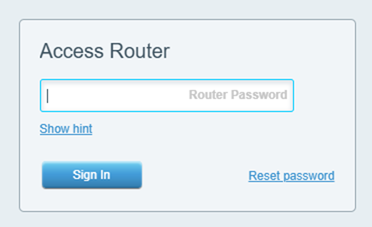
7. Once prompted, enter your Router Password and tap Sign In.
1. Connect your computer to the same mesh network.
2. Launch a browser, type https:// followed by the IP address into the address bar (e.g., https://192.168.1.42), and press [Enter].

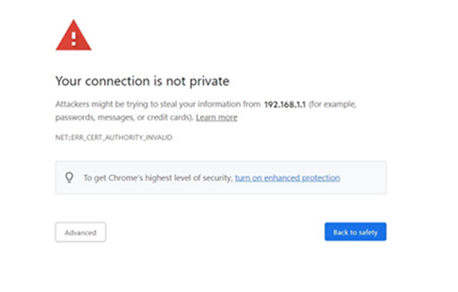
If you encounter any error message, click Advanced to proceed. Learn more.
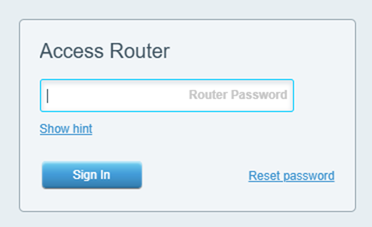
3. Once prompted, enter your Router Password and click Sign In.
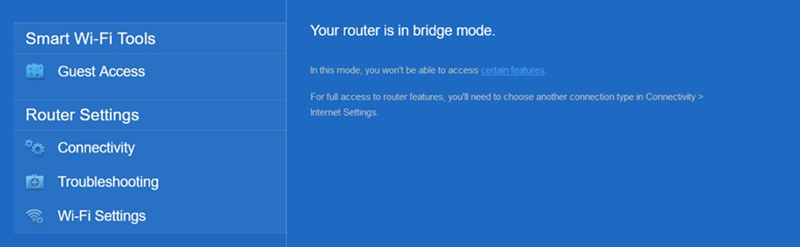
The router dashboard will open, indicating you are successfully logged in.
Router web interface in Bridge Mode
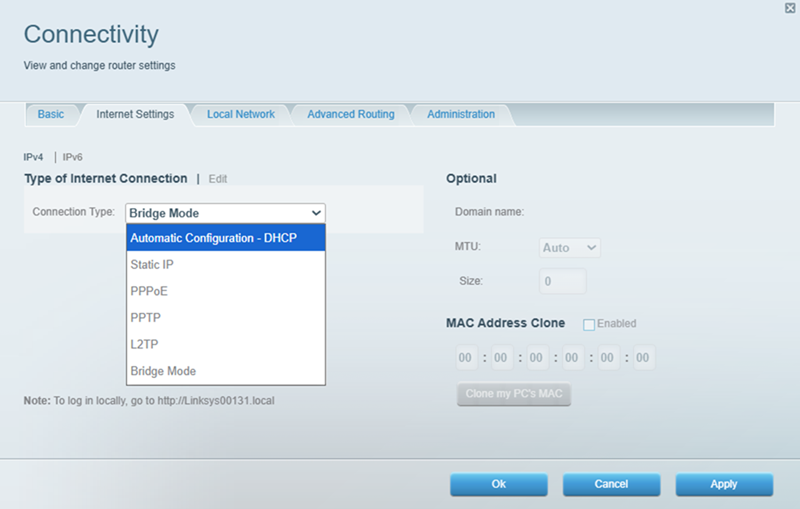
If you navigate to Connectivity under Router Settings, you will find the option to change the router’s connection type from Bridge Mode to another protocol (like Automatic Configuration - DHCP).
However, please use caution, as you may encounter the following issues if you unbridge the router:
- Isolated Networks: Turning OFF Bridge Mode creates a new, private network managed solely by your Linksys parent node. Any device or child node left plugged into your old ISP modem will become isolated, making them completely invisible and inaccessible to the rest of your mesh network.
- IP Address Conflicts (Double NAT): Once your Linksys system returns to standard router mode, it activates its own DHCP server. Having both your ISP modem and your Linksys router trying to assign IP addresses simultaneously creates a "Double NAT" conflict. This leads to dropped connections, smart home device failures, and severe gaming lag.
- Broken Mesh Roaming: For a mesh WiFi system to seamlessly hand off your devices as you move from room to room, all child nodes must talk directly to the primary Linksys node. Leaving child nodes plugged into the ISP modem breaks this communication, destroying your seamless WiFi coverage.
If you are unsure of your network layout or need help configuring your router, contact Linksys support.

