


Say Hello to the Linksys MR7350
The Linksys MR7350 is a Wi-Fi® 6 router designed to deliver fast, reliable coverage for medium-sized homes. It provides seamless connectivity for multiple devices, ensuring smooth streaming, gaming, and browsing. Featuring Intelligent Mesh™ technology, the Linksys MR7350 adapts to your home's layout, offering expanded coverage and the ability to add more nodes as needed. Ideal for handling high-bandwidth activities, this router is perfect for homes with smart devices and heavy internet use.
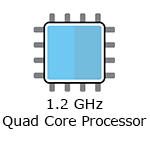
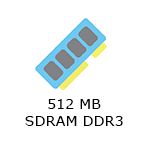
- Concurrent Dual-Band
- Supports 802.11ax (AX1800) up to 1.8 Gbps
- Coverage of up to 1,700 sq ft
- 2x2 simultaneous data streams for stronger, faster performance
- Intelligent Mesh technology
- Beamforming technology
- Guest network
- Parental Controls
- Supports parent/child mode
- Two adjustable antennas (non-detachable)
- Can be wall-mounted or for desktop placement
- Wi-Fi Protected Setup™ (WPS)
- Dimensions (L x W x H): 215 x 155 x 56 mm (antennas folded down)
- Weight: 567 g (1.25 lb)
- Buttons and Switch
- WPS button
- Reset button
- Power switch (rocker style)
- Ports
- Four gigabit ethernet LAN ports
- One gigabit internet WAN port
- Power port (12V, 2A)
- One USB 3.0 port to support USB drives
- Windows®: NTFS and FAT32
- Mac®: APFS (read-only) and HFS+
- Supports SMB v2.0
- UPnP®
- Supports up to 1100mA current draw
- Supported only when the router is in parent mode
- Active internet connection
- A computer with the latest desktop browser to manage router settings - Google Chrome™, Microsoft Edge™, Firefox®, or Safari®
- Linksys MR7350
- Quick start guide
- Ethernet cable
- Power adapter
- Regulatory and warranty documentation
The hardware version is located beside or beneath the model number and is labeled version, ver., or V. If there is no version number beside the model number on your Linksys product, the device is version 1. If you still have trouble finding your version number, see the complete article to learn more.
You can set up your Linksys MR7500 using the web interface or using the 5-Button push method.
Are you still having trouble setting up your router? Click More for additional help.
1. Open the router's web interface.
2. Click on Wi-Fi Settings.
3. Change your settings according to your preference, click Apply, and then click Ok.
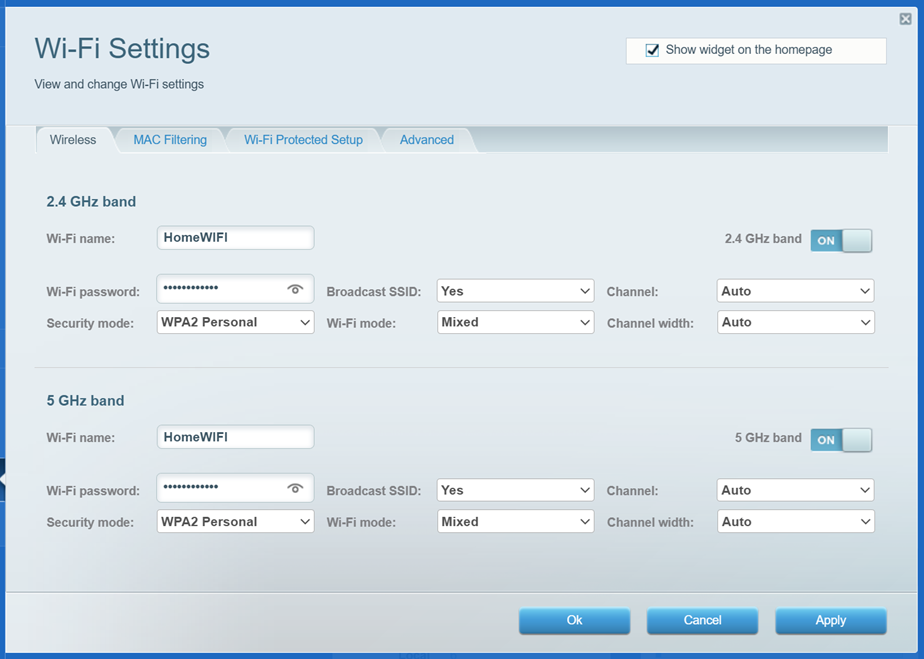
You will temporarily lose your WiFi connection while the settings are being saved. If you updated your WiFi name or password, reconnect using the new credentials.
1. Press and hold the Reset button at the bottom of the device.
The light at the front of the router will flash bright red, pulse dimly three times, flash bright red again, and then turn OFF. You can release the reset button after this process, which takes 15 seconds.
2. Wait for the light to turn solid purple, indicating it is ready to be set up.
Select each category below to view the articles.
- Setting up a Linksys Velop Intelligent Mesh router using a web interface
- Setting up a Linksys Velop Intelligent mesh router using the 5-Button push method
- Adding a child node to a Linksys Intelligent Mesh system
- How to add a child node using the web interface
- Adding child nodes to your Linksys Mesh system through the 5-Press Setup Method
- How to add a wired child node to a Linksys Intelligent Mesh router

